SubTerrain Tool
by SubZero Studios
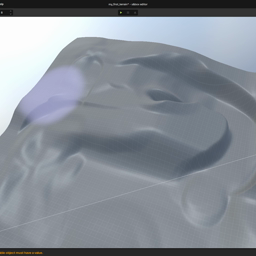
| Summary | Bigger terrain brushes, slope & path sculpting, height setting, and square brush masks for making cooler terrains! |
|---|---|
| Description |
SubTerrain Tool What it does Sculpt Tools • Raise / Lower — paint height up or down. Hold Ctrl to invert. • Smooth — blend neighboring heights for softer terrain. • Flatten — level to the height under the cursor (locks to a plane while dragging). • Slope — click start, drag to end; grades from start height to end height along the line. • Path — click start, drag direction; keeps a constant elevation strip (road/trench style). • Set Height — flatten to an absolute world height from brush settings. • Noise — add procedural variation. Hold Ctrl to invert. • Hole — remove surface and collision in the brush area (per-texel punch-through, not enclosed volumes). [Image] [Image] [Image] Brush & preview • Large brushes — size up to 32,000 units • Brush preview on the terrain surface, matching the built-in terrain tool. • Square masks included (hard, soft, rounded, outline); also uses the shared engine brush list. [Image] How to use it • Add the library. • Open a scene with a Terrain component and select it. • Activate SubTerrain from the scene tools. • Pick a sub-tool from the toolbar or press 1–9. • Choose a brush mask and adjust Size / Opacity in the sidebar. • Left-click and drag on the terrain to sculpt or paint. Hold Ctrl on supported modes to invert. Keyboard shortcuts | Key | Tool | |-----|------| | 1 | Raise / Lower | | 2 | Smooth | | 3 | Flatten | | 4 | Paint Texture | | 5 | Slope | | 6 | Path | | 7 | Set Height | | 8 | Noise | | 9 | Hole | Credits Made by the SubZero Studios team. [Image]SubTerrain Tool
What it does
Sculpt Tools
• Raise / Lower — paint height up or down. Hold Ctrl to invert.
• Smooth — blend neighboring heights for softer terrain.
• Flatten — level to the height under the cursor (locks to a plane while dragging).
• Slope — click start, drag to end; grades from start height to end height along the line.
• Path — click start, drag direction; keeps a constant elevation strip (road/trench style).
• Set Height — flatten to an absolute world height from brush settings.
• Noise — add procedural variation. Hold Ctrl to invert.
• Hole — remove surface and collision in the brush area (per-texel punch-through, not enclosed volumes).
[Image]
[Image]
[Image]
Brush & preview
• Large brushes — size up to 32,000 units
• Brush preview on the terrain surface, matching the built-in terrain tool.
• Square masks included (hard, soft, rounded, outline); also uses the shared engine brush list.
[Image]
How to use it
• Add the library.
• Open a scene with a Terrain component and select it.
• Activate SubTerrain from the scene tools.
• Pick a sub-tool from the toolbar or press 1–9.
• Choose a brush mask and adjust Size / Opacity in the sidebar.
• Left-click and drag on the terrain to sculpt or paint. Hold Ctrl on supported modes to invert.
Keyboard shortcuts
| Key | Tool |
|-----|------|
| 1 | Raise / Lower |
| 2 | Smooth |
| 3 | Flatten |
| 4 | Paint Texture |
| 5 | Slope |
| 6 | Path |
| 7 | Set Height |
| 8 | Noise |
| 9 | Hole |
Credits
Made by the SubZero Studios team.
[Image]
|
| Votes | 1 0 1 |
| Error Rate | 0% |
| Usage |
1 players
2 sessions
44 minutes playtime
22 minutes avg session
Totals captured
|
| Data | {} |