Supershot
by SubZero Studios
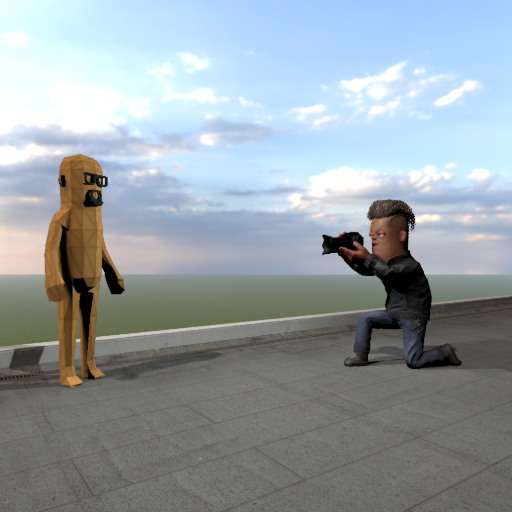
| Summary | Take better Screenshots inside the editor with Discord WebHook Support! |
|---|---|
| Description |
Supershot A screenshot tool for the s&box editor. Take a picture of your scene, edit it, save it, or share it to your discord with a click of a button — all without leaving the editor. [1.3.0] - 2026-06-27 Added • Added a proper Home tab for quick capture actions, recent shots, output settings, and shortcuts into the main tools. • Added a redesigned Edit tab with a larger canvas, layer controls, recent shots, and direct text/image layer positioning. • Added a redesigned Discord tab for picking a saved shot, previewing the post, testing webhooks, and posting to channels. • Added support for including or hiding game UI and widgets in captures. Changed • Renamed the old Menu tab to Home. • Improved the editor preview quality so captures and previews look sharper. • Reworked recent shots so saved images are easier to find and reopen. • Simplified Discord posting to use plain messages with image attachments. • Moved screenshot selection on the Discord tab into a recent-shots picker. • Cleaned up the app layout so each tab has more room and the default view is no longer split awkwardly. Removed • Removed the separate Filters tab. Editing and image adjustments now live in the editor workflow. • Removed Discord rich embed settings and per-channel custom message modes to keep posting simpler. What it does Capture • Capture a shot right from the editor camera, or select a camera source inside the editor. • Resolutions from 1K up to 8K, plus square, portrait, ultrawide, cinematic 21:9, the three sbox.game thumbnail sizes (512x512, 910x512, 512x910), or a custom width/height. • Super sampling renders bigger and scales down for cleaner edges. • Transparent background (PNG) for cut-out artwork. • Hide UI and hide objects by tag so they stay out of the shot. • Capture delay to set up the view before the picture is taken. • Engine post-FX at capture time (bloom, depth of field, tonemapping, and more). Edit • A built-in photo editor with undo/redo and a before/after toggle (nothing is baked in until you save): • Color: brightness, contrast, saturation, exposure, hue shift, and filter presets (Warm, Cool, Vintage, Cinematic, Black & White, High Contrast). • Detail: sharpen and blur. • Effects: vignette and film grain. • Transform: rotate and flip. • Frame: solid border with adjustable size and color. • Watermark: custom text with anchor, size, and color. Preview • Live preview of the Editor Cam (or whatever Camera you have in preferences) with the current edits applied. • Rule-of-thirds guides and a before/after compare button. • Turn the live preview off to save performance. Gallery • Keeps the shots from your session plus the existing images in your output folder. • Reload, re-edit, save, or delete any shot. Deleting also removes the file from disk. Save & share • Save as PNG, JPG, or WebP with a customizable filename template (tokens like {scene}, {project}, {date}, {counter}). • Files go to a folder named after your project under Pictures by default, or any folder you choose. • Post to Discord through channel webhooks (see Posting to Discord below). • Upload to the s&box art page: saves the shot, copies its path to your clipboard, and opens the Steam upload page so you can paste it in. How to use it • Open the Studio from the editor menu bar (Supershot > Editor), the Supershot Studio app in the editor app launcher, or the Supershot scene-view tool. • Frame your shot. Move the editor scene view (or turn on the Supershot scene tool), or switch the source to the scene's main camera in the Capture tab. • Press Capture. Adjust the result in the Edit tab, check the Preview, then Save or Post to Discord. Quick capture (without opening the Studio Editor) • Supershot > Quick Capture for an instant 1080p / 1440p / 4K / 8K save. • Supershot > s&box Package for the Square / Wide / Tall store thumbnails, or Capture All Three at once. • The Supershot scene tool also has overlay buttons for quick captures and capture-and-post to your Discord channels. Settings • Configure your Discord channels, output folder, file format, and filename template in the Studio's Discord and Settings tabs. Built-in presets • Ready-made presets are included for common targets: Discord Art, Steam 4K, and the three s&box package thumbnail sizes. Posting to Discord Super Shot can send your screenshots straight to Discord through channel webhooks — no manual saving and uploading. • Set up channels. Add one or more channels in the Discord tab, each with a name and a webhook URL (in Discord: Channel Settings > Integrations > Webhooks). Mark the ones you use most as favorites. • Post or capture-and-post. Send the current shot, or capture and post in a single click — to one channel or to all of them at once. • Pick what each channel gets. A channel can use the shared message, its own custom message, or no message at all, and you can choose whether it's included when you "post to all". • Customize the message. Write text (Discord markdown works), override the bot's display name and avatar, and optionally wrap the image in a rich embed with a title, description, accent color, footer, and timestamp. • Post from anywhere. Use the Discord tab, the Preview toolbar's Post to All button, the Supershot > Post to Discord editor menu, or the scene tool's capture-and-post buttons. Made by the SubZero Studios team: [Link preview] SubZero JinJav6 [Image] [Image] Anakin6169 F4 [Image] [Image]Supershot
A screenshot tool for the s&box editor. Take a picture of your scene, edit it, save it, or share it to your discord with a click of a button — all without leaving the editor.
[1.3.0] - 2026-06-27
Added
• Added a proper Home tab for quick capture actions, recent shots, output settings, and shortcuts into the main tools.
• Added a redesigned Edit tab with a larger canvas, layer controls, recent shots, and direct text/image layer positioning.
• Added a redesigned Discord tab for picking a saved shot, previewing the post, testing webhooks, and posting to channels.
• Added support for including or hiding game UI and widgets in captures.
Changed
• Renamed the old Menu tab to Home.
• Improved the editor preview quality so captures and previews look sharper.
• Reworked recent shots so saved images are easier to find and reopen.
• Simplified Discord posting to use plain messages with image attachments.
• Moved screenshot selection on the Discord tab into a recent-shots picker.
• Cleaned up the app layout so each tab has more room and the default view is no longer split awkwardly.
Removed
• Removed the separate Filters tab. Editing and image adjustments now live in the editor workflow.
• Removed Discord rich embed settings and per-channel custom message modes to keep posting simpler.
What it does
Capture
• Capture a shot right from the editor camera, or select a camera source inside the editor.
• Resolutions from 1K up to 8K, plus square, portrait, ultrawide, cinematic 21:9, the three sbox.game thumbnail sizes (512x512, 910x512, 512x910), or a custom width/height.
• Super sampling renders bigger and scales down for cleaner edges.
• Transparent background (PNG) for cut-out artwork.
• Hide UI and hide objects by tag so they stay out of the shot.
• Capture delay to set up the view before the picture is taken.
• Engine post-FX at capture time (bloom, depth of field, tonemapping, and more).
Edit
• A built-in photo editor with undo/redo and a before/after toggle (nothing is baked in until you save):
• Color: brightness, contrast, saturation, exposure, hue shift, and filter presets (Warm, Cool, Vintage, Cinematic, Black & White, High Contrast).
• Detail: sharpen and blur.
• Effects: vignette and film grain.
• Transform: rotate and flip.
• Frame: solid border with adjustable size and color.
• Watermark: custom text with anchor, size, and color.
Preview
• Live preview of the Editor Cam (or whatever Camera you have in preferences) with the current edits applied.
• Rule-of-thirds guides and a before/after compare button.
• Turn the live preview off to save performance.
Gallery
• Keeps the shots from your session plus the existing images in your output folder.
• Reload, re-edit, save, or delete any shot. Deleting also removes the file from disk.
Save & share
• Save as PNG, JPG, or WebP with a customizable filename template (tokens like {scene}, {project}, {date}, {counter}).
• Files go to a folder named after your project under Pictures by default, or any folder you choose.
• Post to Discord through channel webhooks (see Posting to Discord below).
• Upload to the s&box art page: saves the shot, copies its path to your clipboard, and opens the Steam upload page so you can paste it in.
How to use it
• Open the Studio from the editor menu bar (Supershot > Editor), the Supershot Studio app in the editor app launcher, or the Supershot scene-view tool.
• Frame your shot. Move the editor scene view (or turn on the Supershot scene tool), or switch the source to the scene's main camera in the Capture tab.
• Press Capture. Adjust the result in the Edit tab, check the Preview, then Save or Post to Discord.
Quick capture (without opening the Studio Editor)
• Supershot > Quick Capture for an instant 1080p / 1440p / 4K / 8K save.
• Supershot > s&box Package for the Square / Wide / Tall store thumbnails, or Capture All Three at once.
• The Supershot scene tool also has overlay buttons for quick captures and capture-and-post to your Discord channels.
Settings
• Configure your Discord channels, output folder, file format, and filename template in the Studio's Discord and Settings tabs.
Built-in presets
• Ready-made presets are included for common targets: Discord Art, Steam 4K, and the three s&box package thumbnail sizes.
Posting to Discord
Super Shot can send your screenshots straight to Discord through channel webhooks — no manual saving and uploading.
• Set up channels. Add one or more channels in the Discord tab, each with a name and a webhook URL (in Discord: Channel Settings > Integrations > Webhooks). Mark the ones you use most as favorites.
• Post or capture-and-post. Send the current shot, or capture and post in a single click — to one channel or to all of them at once.
• Pick what each channel gets. A channel can use the shared message, its own custom message, or no message at all, and you can choose whether it's included when you "post to all".
• Customize the message. Write text (Discord markdown works), override the bot's display name and avatar, and optionally wrap the image in a rich embed with a title, description, accent color, footer, and timestamp.
• Post from anywhere. Use the Discord tab, the Preview toolbar's Post to All button, the Supershot > Post to Discord editor menu, or the scene tool's capture-and-post buttons.
Made by the SubZero Studios team:
[Link preview]
SubZero JinJav6
[Image]
[Image]
Anakin6169 F4
[Image]
[Image]
|
| Votes | 8 0 7 |
| Error Rate | 0% |
| Reviews |
1 reviews
100% Recommended (1)
0% Promise (0)
0% Needs Work (0)
|
| Data | {} |